Are you tired of forgetting your passwords or constantly resetting them? Managing dozens—if not hundreds—of logins can feel overwhelming, especially when security is on the line.
That’s where password managers come in. These tools don’t just save you time; they protect your sensitive information from hackers by creating and storing strong, unique passwords for every account you own. But with so many options out there, how do you know which one is right for you?
We’ll break down 10 top password managers, including NordPass, 1Password, Bitwarden, and more. Stick around, and by the end, you’ll know exactly which tool fits your needs, so you can stop stressing about passwords and focus on what matters most. Ready to take control of your online security? Let’s dive in!
Why You Need A Password Manager
Managing online accounts is becoming harder with every new password we create. Reusing the same password makes your accounts vulnerable to hackers. Writing them down or saving them in browsers isn’t secure either. A password manager solves these problems by keeping your credentials safe and accessible.
With a password manager, you can store, generate, and organize passwords. It protects your sensitive information using encryption. This gives you peace of mind knowing your data is secure. Whether it’s NordPass, 1Password, or Bitwarden, these tools simplify your digital life.
1. Strengthen Your Security
Weak passwords are easy targets for cybercriminals. A password manager helps you create strong and unique passwords. It stores them securely so you don’t have to remember them. This reduces the chances of your accounts getting hacked.
2. Save Time and Avoid Stress
Forgotten passwords lead to constant password resets. A password manager saves you from this hassle. It autofills your login details, saving time and effort.
3. Protect Multiple Accounts
Most people have dozens of online accounts. Keeping track of different passwords is overwhelming. A password manager organizes them in one secure place. This ensures you don’t lose access to any account.
4. Secure Your Sensitive Data
Password managers use advanced encryption to protect your information. This includes login credentials, credit card details, and personal notes. They ensure your sensitive data stays private.
5. Access Passwords Anywhere
Many password managers sync across devices. Whether on your phone or laptop, you can access your passwords anytime. This makes them convenient for people on the go.
6. Generate Strong Passwords
Creating unique and complex passwords for every account is hard. Password managers generate secure passwords for you. This strengthens the security of your accounts.
7. Reduce Phishing Risks
Phishing scams trick people into revealing passwords. A password manager identifies fake websites by not autofilling credentials. This reduces the risk of falling for scams.
8. Share Passwords Securely
Some managers let you share passwords with trusted people securely. This is useful for families or teams who share accounts.
9. Audit Your Passwords
Many password managers analyze your saved passwords. They identify weak, reused, or old passwords. This helps you improve your overall security.
10. Stay Updated with Breach Alerts
Some tools notify you if your credentials appear in data breaches. This allows you to change passwords quickly and stay protected.
Features To Look For In A Password Manager
Choosing the right password manager is essential for securing your accounts. Password managers help store, generate, and manage complex passwords. With many options available, understanding key features can make decision-making easier.
Ease Of Use
A good password manager should have a simple interface. It should be easy to navigate and require minimal steps for saving passwords. Features like auto-fill and browser extensions enhance usability.
Cross-platform Compatibility
Look for tools that work on multiple devices and operating systems. Syncing passwords across your phone, laptop, and tablet ensures seamless access. Cross-platform support adds convenience for users with varied devices.
Security Features
Strong encryption is crucial for protecting your data. Two-factor authentication adds an extra security layer. Features like biometric login and password auditing improve safety.
Password Generation
Built-in password generators save time and create strong passwords. They eliminate the need to think of unique combinations. Look for customizable generation options for better control.
Storage Capacity
Consider the number of passwords the tool can store securely. Some managers offer unlimited storage, which is ideal for users with many accounts. Ensure the storage meets your needs.
Sharing Capabilities
Secure sharing options allow you to share passwords safely with others. This is useful for teams or families. Features like temporary access links enhance security during sharing.
Backup And Recovery
Backup features prevent data loss during device failures. Recovery options help regain access if you forget your master password. These features ensure uninterrupted access.
Customizable Settings
Advanced tools offer settings that adapt to your preferences. Customizable categories for passwords can help organize your data. Look for options that allow tailored management.
Pricing And Plans
Evaluate the pricing based on features offered. Many tools provide free versions with limited features. Paid plans usually offer better security and premium options.
Customer Support
Reliable support ensures quick solutions to technical problems. Look for tools with accessible customer service channels. Guides and tutorials can also help troubleshoot issues.
Nordpass: Simple And Secure
NordPass has quickly become a favorite among password managers. Its simplicity and strong security features make it stand out. Designed for ease of use, it caters to both tech-savvy users and beginners. Whether storing passwords or generating new ones, NordPass keeps your data safe.
It uses advanced encryption to secure your information. This ensures your passwords are safe from threats. Its user-friendly design makes managing your credentials stress-free. Let’s dive into its top features below.
Why Choose Nordpass?
NordPass offers a clean and straightforward interface. You can access your passwords with just a few clicks. It works seamlessly across devices, syncing your data in real time. No need to remember multiple passwords anymore.
Top-notch Security
NordPass uses XChaCha20 encryption to protect your data. This is one of the most secure encryption methods available today. Your passwords are encrypted locally before they are stored. This means only you can access them.
Easy Password Sharing
NordPass lets you securely share passwords with trusted contacts. This feature is useful for families or teams. You no longer need to send sensitive information over email or chat apps.
Seamless Integration
NordPass integrates smoothly with popular browsers. It autofills login details to save time and effort. Its browser extensions support Chrome, Firefox, Edge, and others.
Free And Premium Options
NordPass offers a free version with basic features. The premium plan unlocks advanced tools like password health checks. This ensures your credentials are strong and secure.
Biometric Login Support
NordPass supports biometric authentication for added convenience. You can use fingerprint or face recognition to log in. This makes accessing your vault faster and more secure.
1password: Comprehensive And User-friendly
1Password stands out as one of the most reliable password managers. It offers a balanced mix of security, features, and ease of use. Designed for both individuals and teams, it caters to a wide audience. Its intuitive interface ensures even beginners can navigate it effortlessly.
With 1Password, you can store passwords, payment details, and sensitive notes. It supports multiple devices, syncing data securely across all platforms. Let’s dive into its features to see why it remains a top choice.
1password’s Intuitive Interface
1Password’s interface is clean and straightforward. The dashboard organizes your data into categories for easy access. Users can quickly locate saved passwords, credit cards, and secure notes. The search bar helps find specific entries without hassle.
Secure Password Generation
1Password includes a built-in password generator. It creates strong, unique passwords for every account. Users can customize password length and complexity. This ensures your accounts remain protected against breaches.
Seamless Multi-device Sync
1Password syncs your data across devices without compromising security. It supports Windows, macOS, iOS, Android, and browser extensions. Changes made on one device instantly reflect on others.
Advanced Security Features
1Password employs end-to-end encryption to keep your data private. Only you have the decryption key, ensuring no one else can access your vault. Two-factor authentication (2FA) adds an extra layer of security.
Family And Team Plans
1Password offers plans for families and teams, making it versatile. Family members or team members can share login credentials securely. Admin controls allow you to manage permissions and monitor usage.
Offline Access
1Password allows offline access to your saved data. Your vault syncs locally, ensuring availability without an internet connection. This feature is helpful during travel or in areas with limited connectivity.
Watchtower For Security Alerts
The Watchtower feature monitors your accounts for potential threats. It alerts you about reused or weak passwords. You also receive notifications about data breaches involving your accounts.
Easy Import And Export
1Password makes importing and exporting data simple. You can migrate data from another password manager without complications. This feature saves time and reduces manual effort.
Customizable Vault Organization
Organize your saved data into multiple vaults. Each vault can serve a specific purpose, like work or personal accounts. You can also share selected vaults with family or team members.
Responsive Customer Support
1Password provides responsive customer support through email and community forums. Their team quickly resolves issues and answers questions. Their resources also include guides and tutorials for new users.
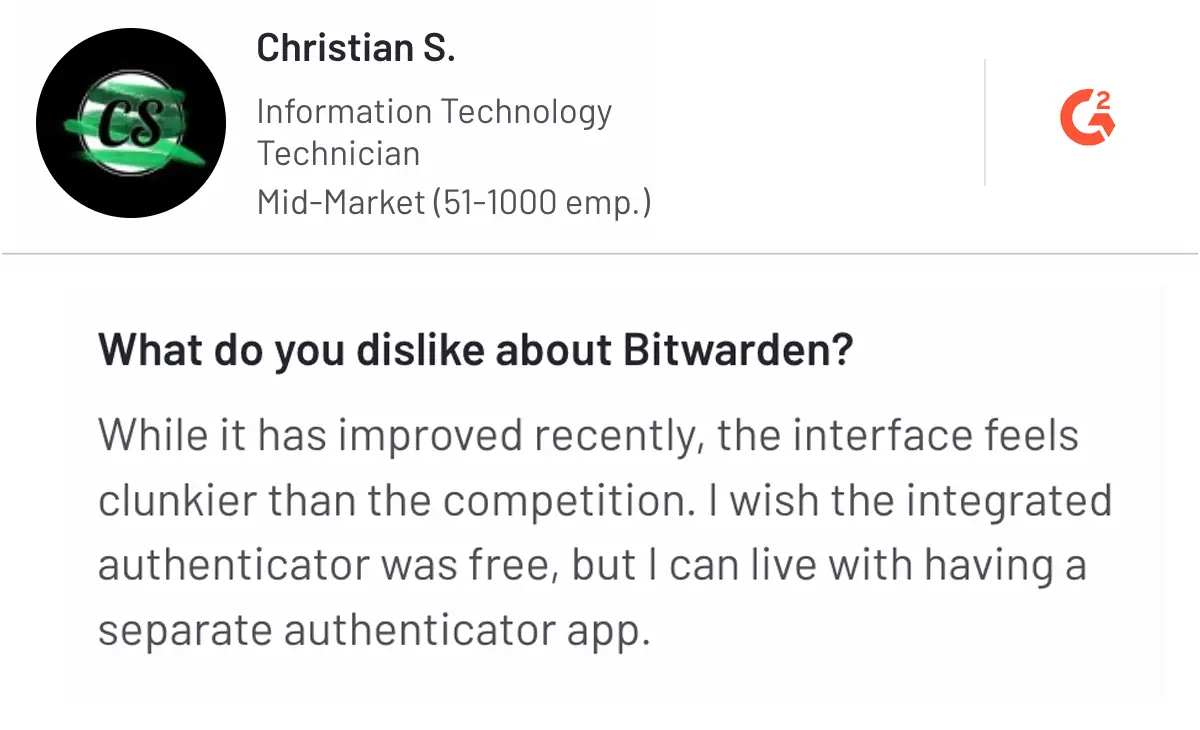
Bitwarden: Open-source And Budget-friendly
Bitwarden stands out as a top choice among password managers. It combines affordability with robust features and a transparent, open-source structure. This makes it appealing for both tech-savvy users and those on a budget. Bitwarden ensures your credentials are safe without breaking the bank.
Open-source software means its code is publicly available. Experts can review it for security and reliability. This transparency builds trust and confidence among users. Bitwarden’s approach prioritizes accessibility and community-driven development.
Free And Paid Options
Bitwarden offers a free version for essential password management. It includes features like unlimited storage and syncing across devices. This makes it ideal for individuals needing basic solutions without extra costs.
For advanced users, Bitwarden has premium and business plans. These include features like enhanced security tools, encrypted file storage, and admin controls. The paid plans are competitively priced compared to other password managers.
Cross-platform Compatibility
Bitwarden works on all major platforms, including Windows, macOS, and Linux. It also has apps for Android and iOS devices. Browser extensions are available for Chrome, Firefox, Edge, and more. This ensures seamless access to your passwords, regardless of your device.
Strong Security Features
Bitwarden uses end-to-end encryption to protect your data. This ensures that only you can access your stored passwords. The encryption occurs locally on your device before syncing to the cloud.
Two-factor authentication adds an extra layer of security. It requires a second step to log in, such as a code sent to your phone. This feature reduces the risk of unauthorized access.
Easy Sharing For Teams
Bitwarden makes sharing credentials with teams or family members simple. Shared collections allow users to securely access group passwords. This feature is particularly useful for businesses and families managing accounts together.
User-friendly Interface
Bitwarden’s interface is clean and intuitive. New users can quickly understand how to store and organize passwords. The dashboard is straightforward, ensuring easy navigation for all skill levels.
Transparent Privacy Policy
Bitwarden’s privacy policy is clear and easy to understand. It explains how your data is handled and stored. Transparency helps users feel secure about their information.
Regular Updates
Bitwarden frequently updates its software to improve features and security. The team actively addresses vulnerabilities and enhances functionality. These updates keep the platform reliable and secure for users.
Community-driven Development
Being open-source allows Bitwarden to benefit from community feedback. Developers worldwide contribute to improving the software. This collaborative approach ensures continuous innovation and reliability.
Affordable Pricing
Bitwarden’s premium plan costs less than many competitors. Its pricing structure is straightforward and affordable. This makes it a great choice for users wanting value without extra expense.
Dashlane: Premium Features With Ease
Dashlane combines premium features with simplicity, offering advanced security tools and a user-friendly interface. Among top password managers like NordPass, 1Password, and Bitwarden, Dashlane stands out for ease of use and reliable performance. Its intuitive design ensures smooth password management for users seeking convenience and robust protection.
Dashlane is a top choice for managing passwords securely and efficiently. Its user-friendly design and robust features make it suitable for everyone. It offers advanced tools while keeping the interface simple. With Dashlane, storing and managing passwords becomes effortless. This manager combines practicality with premium functionalities, making it stand out. Below are the key features that make Dashlane unique.
1. Easy-to-use Interface
Dashlane’s interface is clean and straightforward. It allows users to navigate without confusion. Everything is organized for quick access. Even beginners can use it with ease.
2. Secure Password Sharing
Dashlane enables users to share passwords securely. You can share sensitive information without risk. Only authorized recipients can view or use the shared data.
3. Dark Web Monitoring
Dashlane scans the dark web for compromised accounts. This feature alerts users to potential breaches. It helps you act quickly to protect sensitive data.
4. Built-in Vpn For Extra Security
Dashlane includes a virtual private network (VPN). The VPN enhances online privacy and security. It’s especially useful on public Wi-Fi networks.
5. Automatic Password Changer
Dashlane can update passwords for supported sites automatically. This saves time and ensures stronger security. Users don’t need to visit each site manually.
6. Cross-platform Sync
Dashlane works seamlessly across devices. Passwords sync instantly between phones, tablets, and computers. This ensures access to your data anytime, anywhere.
7. Secure Notes Storage
Dashlane allows users to store secure notes safely. These notes can hold sensitive information beyond passwords. Examples include Wi-Fi codes or bank details.
8. Biometric Login Options
Dashlane supports biometric authentication for added security. You can use fingerprints or facial recognition. This eliminates the need to remember a master password.
9. Password Health Checker
Dashlane analyzes passwords and highlights weak ones. It provides suggestions to improve password strength. This feature promotes better security practices.
10. Free Trial Of Premium Features
Dashlane offers a free trial of its premium plan. Users can test all features before committing. This trial ensures you understand the value of the service. `
Lastpass: A Popular Choice With History
LastPass has long been a favorite in the password manager space. It offers an easy-to-use interface and a strong set of features. With years of experience, it has built trust among users worldwide.
Despite some challenges over time, LastPass remains a solid option. It provides a balance of convenience and security for individuals and businesses alike.
What Makes Lastpass Unique?
LastPass simplifies password management with its autofill and password vault features. The intuitive design ensures even beginners can use it effortlessly. Its ability to store unlimited passwords is a key advantage.
Security Features Of Lastpass
LastPass uses AES-256 bit encryption to secure your data. Your passwords are encrypted locally before syncing to the cloud. Two-factor authentication adds an extra layer of protection for your account.
Cross-platform Compatibility
LastPass works across devices, including desktops, smartphones, and tablets. It supports major operating systems like Windows, macOS, Android, and iOS. Browser extensions for Chrome, Firefox, and others ensure seamless integration.
Free Vs. Premium Plans
LastPass offers both free and premium plans. The free version includes basic password management features. The premium plan adds advanced sharing options and priority support. Families and businesses can opt for tailored plans.
History And Reputation
LastPass has been around since 2008, earning a loyal user base. Over the years, it has faced some security incidents but addressed them transparently. Its long-standing presence speaks to its reliability.
Credit: www.securden.com
Keeper: Advanced Security For Businesses
Keeper is one of the top password managers tailored for businesses. It offers advanced security features to protect sensitive data. Designed with enterprises in mind, Keeper helps teams collaborate securely. Its robust encryption ensures that data stays safe from breaches. Below, explore why Keeper stands out for business use.
Why Keeper Is Trusted By Businesses
Keeper provides zero-knowledge encryption for ultimate data protection. This means only you can access your passwords and files. It minimizes risks by offering secure password sharing among team members. Businesses can trust Keeper to safeguard sensitive credentials from cyber threats.
Role-based Access Control
Keeper allows admins to assign specific roles to users. This ensures employees access only what they need. Role-based access control improves internal security and reduces errors. It’s a key feature for organizations managing large teams.
Seamless Integration With Business Tools
Keeper integrates with popular tools like Microsoft 365, Google Workspace, and more. These integrations simplify password management across platforms. It also supports Single Sign-On (SSO) for added convenience. This makes it easy to adopt Keeper without disrupting workflows.
Advanced Reporting And Analytics
Keeper provides detailed reports on password usage and security risks. Admins can monitor compliance and identify vulnerabilities. These insights help businesses strengthen their overall security posture. The analytics are easy to understand and actionable.
Dark Web Monitoring
Keeper includes dark web monitoring to detect compromised credentials. It alerts users if their passwords appear in data breaches. This proactive feature helps businesses respond swiftly to threats. It’s an essential tool for staying ahead of hackers.
End-to-end Encryption For Files
Keeper secures not only passwords but also sensitive files. Its end-to-end encryption ensures files remain private. This is especially useful for sharing confidential documents. Businesses can rely on Keeper for secure file storage and sharing.
Customizable Security Policies
Admins can enforce strong password policies using Keeper. These policies ensure employees create secure and unique passwords. Customization options allow businesses to meet specific security needs. This enhances compliance with industry standards.
Two-factor Authentication (2fa) Support
Keeper supports various 2FA methods for an extra layer of security. These include SMS, TOTP, and hardware keys like YubiKey. Two-factor authentication reduces the risk of unauthorized access. It’s a vital feature for protecting business accounts.
Easy Onboarding And User Training
Keeper offers intuitive tools for onboarding new team members. Its user-friendly interface simplifies password management for employees. Businesses can also access training resources and support. This ensures a smooth transition to using Keeper.
Scalable For Businesses Of All Sizes
Keeper is suitable for startups, SMEs, and large enterprises. Its scalable features grow with the needs of your business. You can add or remove users easily without hassle. This flexibility makes Keeper a reliable choice for any organization.
Roboform: Organized And Reliable
RoboForm stands out as a dependable password manager with a focus on organization. It simplifies storing, sharing, and managing passwords across multiple devices. Users appreciate its intuitive interface and extensive features. RoboForm ensures both security and accessibility for personal and professional needs.
This password manager has earned trust for its robust encryption and seamless functionality. It is designed to streamline your digital life, making password management less stressful. RoboForm appeals to users seeking a reliable tool for safeguarding their sensitive information.
Easy Setup And User-friendly Interface
RoboForm offers a quick setup process, saving users valuable time. Its user-friendly design ensures a smooth experience for beginners and tech-savvy users alike. Organizing passwords is effortless due to its clear and simple layout.
Strong Encryption For Enhanced Security
RoboForm uses AES-256 encryption, one of the strongest encryption methods available. This ensures your passwords and data remain secure from unauthorized access. It also supports two-factor authentication for added protection.
Cross-platform Compatibility
RoboForm works seamlessly across multiple platforms, including Windows, macOS, Android, and iOS. It syncs your data across devices, letting you access passwords anytime. This feature is ideal for users with diverse device preferences.
Secure Password Sharing
RoboForm allows safe sharing of passwords with trusted contacts. You can control access levels, ensuring sensitive information stays protected. This feature is useful for teams or families managing shared accounts.
Form-filling Capabilities
RoboForm simplifies online form-filling, saving users from typing repetitive information. It auto-fills details like names, addresses, and payment information securely. This saves time and reduces errors during online transactions.
Offline Access
RoboForm provides offline access to your passwords, ensuring usability without internet. This feature is helpful in scenarios with limited connectivity. Your data remains encrypted even when accessed offline.
Customizable Passwords
RoboForm includes a password generator to create strong, unique passwords. It ensures your accounts remain secure with randomized combinations. Users can customize password length and complexity to meet specific needs.
Affordable Pricing Plans
RoboForm offers competitive pricing options for individuals and businesses. Its plans include features catering to various user requirements. The affordable cost makes it accessible to a wide audience.
Reliable Customer Support
RoboForm provides responsive customer support to assist users with issues. Its support team is available through email and live chat. Helpful resources like FAQs and tutorials enhance the user experience.
Sticky Password: Unique Features With Flexibility
Sticky Password is a trusted name in the password management space. It offers a blend of unique features and flexibility, making it a reliable choice for users. Its user-friendly design and practical tools cater to both beginners and advanced users. Sticky Password ensures your online security while maintaining ease of use. Let’s delve into its standout features and why it’s worth considering.
Cloud And Local Storage Options
Sticky Password provides both cloud and local storage options. Cloud storage syncs passwords across your devices seamlessly. Local storage keeps your data offline, enhancing security. This flexibility gives users full control over their data.
Portable Usb Version
Sticky Password offers a portable USB version. You can carry your encrypted data on a USB drive. This ensures access to your passwords without installing the app on another device. It’s perfect for those who value convenience and security.
Biometric Login Support
Sticky Password supports biometric authentication on compatible devices. Use fingerprints or facial recognition to access your passwords. This adds an extra layer of security and makes logging in quick and easy.
Lifetime Subscription Plan
Unlike many competitors, Sticky Password offers a lifetime subscription. Pay once and enjoy lifetime access to their services. This is a cost-effective option for long-term users.
Automatic Form Filling
Sticky Password simplifies online browsing with automatic form filling. It securely stores and fills in usernames, passwords, and other details. This saves time and reduces the risk of errors while logging in.
Encrypted Password Sharing
Sticky Password enables secure password sharing with trusted individuals. The data is encrypted during transmission, ensuring privacy. This feature is helpful for families or teams sharing login credentials.
Support For Multiple Platforms
Sticky Password works across various platforms, including Windows, Mac, Android, and iOS. It ensures a seamless experience regardless of the device you use. This multi-platform compatibility is ideal for users with diverse devices.
Commitment To Conservation
Sticky Password supports endangered manatee conservation efforts. A portion of its proceeds goes to wildlife conservation projects. By using this tool, you indirectly contribute to a noble cause.
Customizable Settings
Sticky Password allows users to customize many features. You can adjust password generation rules and syncing preferences. This personalization ensures the tool suits your unique needs.
Offline Access To Passwords
Sticky Password offers offline access to your stored data. This feature is useful during internet outages or in remote areas. It ensures you can access your passwords anytime, anywhere.
Zoho Vault: Ideal For Teams And Collaboration
Zoho Vault is a reliable password manager built for teams. It simplifies secure password sharing and fosters seamless collaboration. With its user-friendly interface, it ensures teams can safely manage credentials without complexity. It works well for businesses of all sizes aiming for better security practices.
Features Designed For Team Collaboration
Zoho Vault offers centralized password management for teams. Administrators can control access levels for each user. Shared passwords are encrypted, ensuring data stays safe. Members can collaborate without compromising sensitive information. These features make it perfect for work environments requiring teamwork.
Secure Password Sharing For Groups
Sharing credentials within a team is easy and secure. Zoho Vault encrypts passwords before sharing them with team members. You can grant access to specific individuals or groups. This eliminates the risks of sharing passwords via email or chat. It ensures that sensitive information remains confidential.
Customizable User Access Roles
Admins can assign roles and permissions tailored to team needs. You can define which members can view, edit, or share passwords. This flexibility improves security while promoting productivity. These customizable roles help maintain better control over shared credentials.
Audit And Activity Tracking
Zoho Vault includes detailed activity logs for tracking user actions. You can monitor who accessed or modified specific credentials. This helps identify potential security issues early. The audit feature promotes accountability within teams and ensures transparency in password management.
Integrations With Popular Business Tools
Zoho Vault integrates with tools like G Suite, Slack, and Microsoft Teams. These integrations streamline workflows and enhance productivity. Teams can manage passwords directly within the tools they already use. This saves time and reduces the hassle of switching between platforms.
Offline Access For Emergency Situations
Zoho Vault allows users to access passwords offline during emergencies. Credentials are stored securely on your device for offline use. This ensures uninterrupted access even during network outages. It provides an added layer of convenience and reliability.
Affordable Pricing For Businesses
Zoho Vault offers cost-effective pricing plans for teams and businesses. Its plans cater to both small teams and larger organizations. The affordable pricing ensures businesses of any size can implement secure password management. This makes it a practical choice for companies on a budget.

Credit: www.reddit.com
Tips For Choosing The Right Password Manager
Choosing the right password manager is an important step for online safety. With so many options like NordPass, 1Password, and Bitwarden, it can feel overwhelming. Each tool offers unique features, but not all are suitable for everyone. To find the best match, consider your specific needs and preferences. Below are key tips to guide your decision.
1. Know Your Budget
Some password managers are free, while others require a subscription. Decide how much you’re willing to spend. Free options like Bitwarden offer basic features. Paid tools like 1Password often include advanced security and extras. Match your budget with the features you need.
2. Check Compatibility
Ensure the password manager works on your devices. Some tools support only specific operating systems. Others like NordPass and Dashlane work across multiple platforms. Look for compatibility with your smartphone, tablet, and computer.
3. Evaluate Security Features
Security is a key factor in any password manager. Look for features like two-factor authentication and end-to-end encryption. Tools like LastPass and Keeper provide strong security layers. Prioritize options that protect your sensitive information.
4. Consider Ease Of Use
A complicated tool can be frustrating. Choose a password manager with a simple and intuitive interface. Dashlane and 1Password are known for their user-friendly designs. Test the tool’s setup process to see if it meets your comfort level.
5. Look For Cross-device Sync
Syncing across devices ensures access to your passwords anytime, anywhere. Many tools like NordPass offer this feature. Check if the sync is included in the free version or requires a premium plan.
6. Check For Browser Integration
Browser extensions simplify password management during online browsing. Tools like Bitwarden and LastPass integrate seamlessly with major browsers. Choose a manager that supports your preferred browser for convenience.
7. Assess Customer Support
Reliable customer support can save time during troubleshooting. Some tools offer 24/7 support via chat or email. Check reviews to see how responsive the support team is. Good support adds value to the service.
8. Research Backup And Recovery Options
Backup features are essential in case of accidental data loss. Some managers provide secure recovery keys or master password options. Tools like Keeper include backup capabilities for added safety.
9. Test Free Trials
Many password managers offer free trials or money-back guarantees. Testing the tool helps you see if it fits your needs. Take advantage of trials to explore features before committing.
10. Read User Reviews
User reviews offer insights into real-world experiences. Platforms like Trustpilot or app stores provide detailed feedback. Focus on reviews discussing the tool’s security, usability, and reliability.

Credit: ironvest.com
Frequently Asked Questions
What Are The Key Features Of Nordpass?
NordPass offers secure password storage, autofill, password health analysis, and strong encryption for data protection.
Is Bitwarden Free To Use?
Yes, Bitwarden offers a free plan with essential features like password storage and syncing across devices.
How Does 1password Ensure Data Safety?
1Password uses end-to-end encryption, two-factor authentication, and a zero-knowledge policy to keep your data secure.
Conclusion
Protecting your online accounts starts with strong password management. The tools listed above offer reliable options to keep your credentials safe. Choosing the right password manager depends on your needs and preferences. Some focus on simplicity, while others provide advanced features.
Regularly updating passwords and using unique ones improves security. These managers help you stay organized and reduce risks. Explore their features and find one that suits your lifestyle. With these tools, managing passwords becomes easier and safer. Prioritize your online security today for a worry-free digital experience.