Are you searching for the perfect graphic design software to bring your creative ideas to life? Whether you’re a seasoned designer or just starting out, choosing the right tools can make all the difference.
With so many options available, it’s easy to feel overwhelmed. That’s why we’ve done the hard work for you. In this guide, we’ll walk you through the 10 best graphic design software options, including popular choices like Adobe, Figma, and Affinity.
Each tool comes with unique features that cater to specific needs, whether you’re designing for print, digital, or both. By the end of this article, you’ll know exactly which software suits your style, your projects, and your budget. Let’s dive in—you don’t want to miss this!

Top Features To Look For In Graphic Design Software
Choosing the right graphic design software can feel overwhelming. With so many options, understanding key features is essential. These features help streamline design processes and improve output quality. Below are the most important aspects to consider before making a choice.
1. User-Friendly Interface
A simple, intuitive interface makes designing stress-free. Look for software with clear menus and easy navigation. Beginners and professionals both benefit from a well-organized workspace.
2. Customizable Tools
Customizable tools allow users to tailor the software to their needs. Features like adjustable brushes, fonts, and templates save time. They also enhance creativity by providing flexibility.
3. High-Quality Export Options
Exporting designs in various formats ensures compatibility across devices. Look for software that supports PNG, JPEG, and vector formats. The ability to export in high resolution is crucial for professional projects.
4. Compatibility with Multiple Devices
Cross-platform compatibility is a must for modern designers. Software that works on Windows, macOS, and tablets offers more freedom. Cloud-based options add convenience by syncing work seamlessly.
5. Robust Layer Management
Layer management simplifies complex designs by organizing elements. Software with unlimited layers and grouping options is ideal. It helps in creating detailed designs without confusion.
6. Pre-Built Templates
Pre-built templates save time and provide inspiration. Templates for social media, presentations, and posters are especially helpful. They allow users to start projects without prior design knowledge.
7. Collaboration Features
Collaboration tools are essential for team-based projects. Features like real-time editing and sharing improve teamwork. Cloud integration makes working remotely more efficient.
8. Extensive Font Library
A diverse font library adds personality to your designs. Look for software offering both classic and modern typefaces. Access to customizable typography enhances design versatility.
9. Advanced Editing Options
Advanced editing tools refine every detail of your design. Features like gradient fills, blending modes, and masking improve visuals. These tools are vital for professional-grade results.
10. Responsive Customer Support
Good customer support resolves issues quickly. Look for software offering tutorials, forums, and direct help options. Reliable support ensures a smoother learning curve for beginners.
Adobe Photoshop For Advanced Editing
Adobe Photoshop remains a powerful tool for graphic designers worldwide. It offers advanced editing features that cater to professionals and beginners alike. This software has a broad range of tools to enhance images, create designs, and manipulate visuals.
Whether you’re working on photo retouching or graphic design projects, Photoshop provides unmatched flexibility. Its precision and control over editing make it a top choice for detailed work.
Features That Boost Creativity
Photoshop is packed with features like layers, masks, and adjustment tools. These tools allow users to experiment and refine their designs with ease. You can layer elements, adjust colors, and add effects without altering the original file.
Custom brushes and filters expand creative possibilities further. These allow designers to add textures and unique styles to their work. Advanced typography tools also enable precise text placement and design.
Editing Tools For Professionals
Photoshop’s editing tools are tailored for professional-grade projects. The software supports high-resolution files for detailed photo manipulation. Designers can crop, resize, and enhance images without losing quality.
Its Content-Aware Fill feature removes unwanted objects seamlessly. This saves time and ensures clean edits. The Pen Tool also allows for precise paths and selections in complex designs.
Integration And Compatibility
Photoshop integrates smoothly with other Adobe products like Illustrator and Lightroom. This connectivity helps streamline workflows and maintain consistency across projects.
The software supports multiple file formats, ensuring compatibility with various design needs. It works well with PSD, PNG, JPG, and many other formats.
Benefits For Advanced Editing
Photoshop excels in tasks like photo restoration and digital painting. Its advanced features give professionals the control to refine every detail. Designers rely on it for creating realistic effects and artistic compositions.
Its versatility and precision make it ideal for complex editing tasks. Whether creating elaborate designs or simple adjustments, Photoshop delivers quality results.
Adobe Illustrator For Vector Graphics
Adobe Illustrator is a leading software for creating vector-based designs. It is widely used by graphic designers, illustrators, and marketers. Its precision and flexibility make it ideal for creating logos, icons, and complex illustrations. Whether you’re designing for print or digital, Illustrator provides the tools to bring your ideas to life.
What Makes Adobe Illustrator Stand Out?
Adobe Illustrator offers unmatched scalability for vector graphics. Designs can be resized without losing quality. This makes it perfect for creating everything from small icons to large billboards. Its advanced tools allow for detailed and intricate designs. Features like the Pen Tool and Shape Builder Tool enhance creativity and precision.
User-friendly Interface
The software has an intuitive interface that supports efficient workflows. Panels and tools are customizable to suit your preferences. Keyboard shortcuts help save time and improve productivity. Beginners can quickly grasp the basics, while experienced users can explore advanced features.
Integration With Other Adobe Tools
Illustrator works seamlessly with other Adobe Creative Cloud apps. You can transfer designs between Photoshop, InDesign, and Premiere Pro. This integration simplifies the process of working on complex projects. Cloud storage ensures that your work is accessible from multiple devices.
Key Features For Designers
Illustrator includes tools like artboards, layers, and gradient creation. The Live Trace feature converts raster images into vector artwork. The Type Tool allows for creative typography designs. Export options let you save files in multiple formats, including SVG and PDF.
Why Choose Illustrator For Vector Art?
Illustrator is trusted by professionals for its accuracy and versatility. It supports both beginners and advanced users with its wide range of tools. The software is constantly updated with new features and improvements. Its reliability makes it a top choice for vector graphic design.
Figma For Collaborative Design
Figma is a powerful tool for collaborative graphic design. It allows teams to work on projects together in real-time. Designers, developers, and stakeholders can seamlessly contribute to the same file. This eliminates the need for constant file sharing or version control issues.
Its cloud-based platform makes it accessible from any device with internet. This flexibility is ideal for remote teams or freelancers. Figma’s intuitive interface ensures users of all skill levels can navigate it easily.
Real-time Collaboration
Figma supports real-time updates, making teamwork faster and more efficient. All changes are visible instantly to everyone in the project. This feature fosters a collaborative environment and reduces miscommunication.
Commenting And Feedback Tools
Figma includes built-in tools for commenting directly on designs. Team members can leave feedback or suggestions on specific elements. This keeps communication organized and reduces the need for lengthy emails.
Cross-platform Accessibility
Figma works on Windows, macOS, and even in web browsers. There’s no need for downloads or installations. This cross-platform support ensures everyone can access projects without hassle.
Version History
Figma automatically saves every change made to a design. Users can view or revert to previous versions easily. This feature is helpful for tracking progress or undoing unwanted edits.
Integration With Other Tools
Figma integrates with tools like Slack, Jira, and Microsoft Teams. These integrations streamline communication and workflow management. Teams can stay organized without switching between multiple platforms.
Affinity Designer For Cost-effective Solutions
Affinity Designer is a powerful graphic design software with affordable pricing. It offers professional-grade tools for creatives on a budget. This software is a great option for individuals and small businesses.
Its one-time purchase model eliminates subscription fees, saving long-term costs. Many designers choose Affinity Designer for its impressive features and accessibility. It’s suitable for creating illustrations, UI designs, and more.
Features That Make Affinity Designer Stand Out
Affinity Designer combines vector and raster tools in one seamless interface. This feature makes it versatile for various design projects. Designers can switch between modes without leaving the software.
It supports advanced features like artboards, grids, and snapping tools. These tools help users create precise and professional designs. The software also offers a wide range of brushes and effects.
User-friendly Design For Beginners
Affinity Designer is easy to learn, even for beginners. Its clean interface ensures smooth navigation and usability. Tutorials and guides are available to help users master its tools.
The software provides adjustable settings to suit different skill levels. Beginners can start small and explore advanced features over time.
Compatibility Across Platforms
Affinity Designer is compatible with Windows, macOS, and iPad. This cross-platform support allows flexibility for designers on different devices. Files created in the software can be exported in various formats.
It works well with PSD files and supports industry-standard formats. This ensures seamless collaboration with clients or other designers.
Affordable Pricing Without Sacrificing Quality
Affinity Designer offers top-tier features at a low cost. Users pay once, with no monthly or yearly fees. Its affordability makes it a favorite for budget-conscious creatives.
Despite its lower price, it matches the quality of premium software. Many users find it a valuable investment for their design needs.
Canva For Beginners And Quick Designs
Canva is a favorite among beginners for its simplicity and versatility. It allows users to create stunning designs without prior graphic design knowledge. Its drag-and-drop interface is intuitive and easy to navigate. You can craft everything from social media posts to presentations in minutes.
Canva offers a library of templates tailored to various needs. These templates help users create professional-looking designs quickly. Its features make it ideal for those with limited design experience.
What Makes Canva Beginner-friendly?
Canva provides an uncluttered interface that even first-time users find simple. The platform walks you through the basics step by step. This ensures that users can start designing immediately.
Its design elements, like fonts and images, are easy to access. Canva eliminates the need for complex tools or software downloads. Everything works seamlessly within your browser or mobile app.
Key Features For Quick Designs
Canva’s pre-designed templates save time and effort. They are customizable and cater to diverse design needs. You can adjust colors, fonts, and layouts with just a few clicks.
The platform also offers a vast library of free stock photos and icons. These assets enhance your designs without requiring external resources. Canva’s collaboration feature allows real-time teamwork on the same project.
Perfect For Social Media Content
Canva is ideal for creating social media graphics quickly. Its templates are optimized for platforms like Instagram, Facebook, and Twitter. These pre-sized designs eliminate the guesswork in resizing.
Users can create eye-catching posts and stories within minutes. The built-in text effects and animations add extra flair to designs.
Free And Paid Plans
Canva offers a free plan with ample features for beginners. Users get access to basic templates, fonts, and design elements. It is suitable for personal projects and small-scale designs.
The Pro plan unlocks advanced features like background removal and premium templates. It also offers more storage for high-resolution designs.
Coreldraw For Professionals
CorelDRAW is a versatile graphic design software trusted by professionals worldwide. It offers powerful tools for creating vector graphics, layouts, and illustrations. Known for its user-friendly interface, it provides precise control over design elements. Whether working on logos, brochures, or web designs, CorelDRAW delivers professional results.
This software is ideal for designers who need precision and flexibility. It supports advanced features like multi-page editing and extensive typography tools. With its smooth performance and comprehensive toolset, CorelDRAW is a go-to choice for seasoned graphic designers.
Coreldraw’s Advanced Vector Editing Tools
CorelDRAW excels in vector editing with its precise drawing tools. Designers can create smooth curves, detailed shapes, and scalable artwork effortlessly. The software also supports non-destructive editing, ensuring original designs remain intact. Its intuitive pen tool simplifies creating intricate paths and lines.
Typography Features For Stunning Text Designs
CorelDRAW offers robust typography tools for creative text designs. Designers can adjust kerning, tracking, and line spacing with ease. The software includes features like text-to-path and open-type font support. It also provides access to advanced font effects, enhancing typographic creativity.
Multi-page Layout And Design
CorelDRAW supports multi-page layouts, making it ideal for brochures and booklets. Users can design multiple pages within a single project file. The software simplifies managing and organizing complex design projects. Its page navigation tools enhance workflow efficiency.
Seamless File Compatibility
CorelDRAW ensures compatibility with a wide range of file formats. Designers can import and export files in formats like AI, PSD, PDF, and SVG. This flexibility allows easy collaboration and sharing across different platforms. It also supports CMYK and RGB color profiles for professional printing.
Customizable Workspace For Efficient Workflow
CorelDRAW allows users to customize their workspace for better productivity. Designers can rearrange toolbars, panels, and shortcuts to suit their preferences. The software also includes pre-designed workspace options for specific design tasks. This adaptability enhances overall user experience.
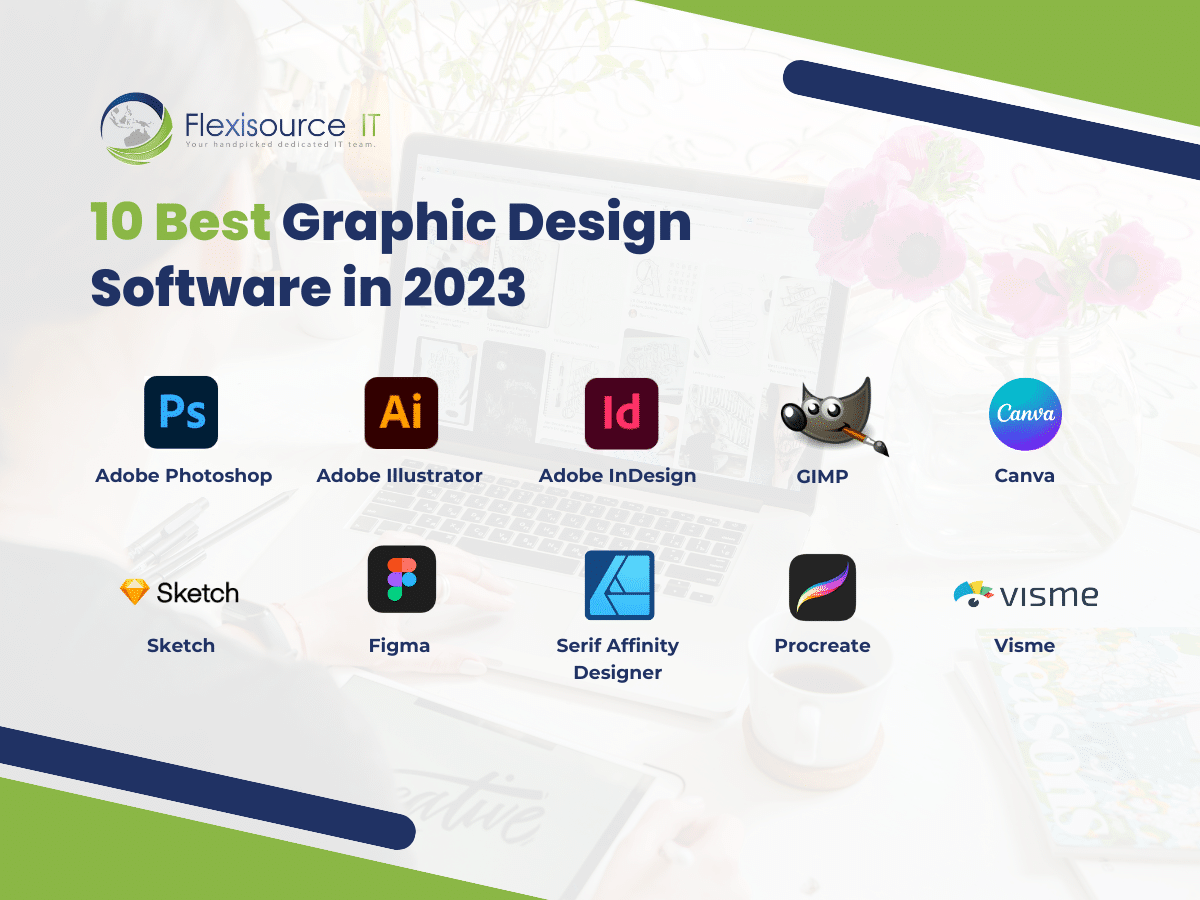
Credit: flexisourceit.com.au
Sketch For Ui And Ux Design
Sketch is a top choice among graphic designers focused on UI and UX. It offers tools to create wireframes, prototypes, and high-fidelity designs. This software is lightweight and easy to use for professionals and beginners. Designers can quickly turn ideas into interactive designs.
Sketch simplifies the design process with its grid system and reusable symbols. It is built specifically for macOS, ensuring smooth performance. Collaboration features allow teams to work efficiently on shared projects.
Why Sketch Is Perfect For Ui Design
Sketch provides a clean workspace for creating user interfaces. It supports vector graphics, making designs scalable without loss of quality. Designers can easily manage colors, typography, and layout in one place. Its intuitive tools help maintain consistency across pages and components.
Sketch For Creating Wireframes
Wireframes are essential for planning user flows and visualizing layouts. Sketch enables designers to create wireframes quickly using pre-built templates and shapes. Layers and grids help organize elements for better clarity. This speeds up the design process and improves communication with stakeholders.
Prototyping Made Simple With Sketch
Sketch allows designers to turn static designs into interactive prototypes. Linking screens and adding transitions is easy with its built-in tools. Prototypes can be shared with clients and team members for feedback. This eliminates guesswork and ensures the design meets user expectations.
Collaboration Features For Design Teams
Sketch offers shared libraries and cloud storage for team collaboration. Multiple designers can work on the same project without overwriting changes. Feedback and edits can be managed in real-time to improve workflow. This makes it ideal for teams working on complex design systems.
Sketch Plugins To Extend Functionality
Plugins enhance Sketch’s capabilities by adding new features. Designers can automate repetitive tasks, export files, or integrate third-party tools. Popular plugins include those for asset export, icon creation, and design handoff. These plugins save time and boost productivity.
Ease Of Use For Beginners
Sketch is user-friendly and has a low learning curve. Its drag-and-drop interface is intuitive for creating designs. Beginners can access tutorials and guides to quickly master the software. This makes Sketch a great starting point for aspiring UI and UX designers.
Inkscape For Open-source Flexibility
Inkscape is a powerful open-source graphic design software. It offers flexibility for creating vector-based designs. Designers love it for its cost-free accessibility and rich features. Whether you’re designing logos, illustrations, or web graphics, Inkscape has tools to help. Its active community also provides resources and tutorials for beginners.
This software is compatible with Windows, macOS, and Linux. Its open-source nature allows users to customize and improve the platform. Inkscape is an excellent choice for those seeking professional results without high costs.
What Makes Inkscape Unique?
Inkscape supports Scalable Vector Graphics (SVG) as its primary file format. This ensures designs maintain quality at any size. It also offers advanced path editing tools for precise control. Features like node editing and object manipulation stand out. These tools make creating complex shapes and designs simpler.
Inkscape also supports importing and exporting various file formats. This includes PNG, PDF, and EPS. This versatility makes it useful for both print and digital projects.
Key Features Of Inkscape
Inkscape comes with a range of essential tools for designers:
- Bezier and freehand drawing tools for smooth curves.
- Shape tools for rectangles, circles, and polygons.
- Text tools with advanced font and style options.
- Path operations like union, difference, and intersection.
- Gradient and transparency support for creative designs.
Its snapping and alignment tools ensure elements are positioned perfectly. These features make it suitable for both beginners and experienced designers.
Why Choose Inkscape?
Inkscape is free, making it budget-friendly for individuals and small teams. It is also lightweight, meaning it runs smoothly on most computers. Its user interface is clean and intuitive, helping users focus on their work.
For those passionate about open-source tools, Inkscape is an ideal option. Its flexibility and community-driven updates ensure it stays relevant. Many professional designers use it alongside other software for versatile workflows.
Gravit Designer For Cross-platform Usability
Gravit Designer is a powerful graphic design tool built for flexibility. It is known for its ability to work seamlessly across multiple platforms. Designers can use it on Windows, Mac, Linux, and even directly in web browsers. This makes it a convenient choice for users who switch devices often or need a browser-based option.
Its interface is clean and easy to navigate. Beginners and experienced designers alike find it user-friendly. Gravit Designer offers robust tools for creating vector graphics, illustrations, and UI designs. It ensures high-quality output without requiring advanced technical skills. Let’s explore its features and benefits in more detail.
Lightweight And Accessible
Gravit Designer does not require heavy system resources. It runs smoothly even on older devices. The browser version is accessible without installation. This makes it ideal for quick edits or working on shared computers.
Free And Paid Versions
Gravit Designer offers a free version with essential features. The Pro version unlocks advanced tools like offline access and high-resolution exports. Both options cater to different user needs, ensuring flexibility in pricing.
Customizable Workspace
The software allows users to personalize their workspace. Designers can adjust panels, toolbars, and shortcuts. This enhances productivity and makes the interface feel tailored to individual preferences.
Wide Range Of Design Tools
Gravit Designer provides tools for vector editing, text manipulation, and shape creation. It supports complex path operations and layer management. These features make it suitable for logos, icons, and UI elements.
Cross-platform Sharing
Files created in Gravit Designer are compatible across devices. Users can save projects in cloud storage for easy access. This helps with collaboration and ensures consistency between different platforms.
Export Options
Gravit Designer supports exporting designs in various formats. Users can choose from PNG, JPG, SVG, and PDF. This flexibility caters to print and digital needs.
Regular Updates
The tool receives frequent updates to improve performance. New features and bug fixes are added consistently. This keeps the software reliable and up-to-date.
Ideal For Beginners
Gravit Designer is beginner-friendly and includes helpful tutorials. It simplifies the learning process for individuals new to graphic design. The intuitive interface reduces the learning curve.
Cloud Integration
Designs can be saved directly to the cloud. This ensures files are accessible anywhere. Cloud integration supports collaboration and sharing with team members.
Strong Community Support
Gravit Designer has an active user community. Forums and guides help users solve common issues. The support system encourages learning and growth among users.
Procreate For Digital Illustrations
Procreate has become a favorite tool for digital artists worldwide. Known for its intuitive interface, it offers a seamless drawing experience. This iPad-exclusive app caters to both beginners and professional illustrators. It provides precision and flexibility for creating stunning artwork.
The app supports pressure-sensitive stylus devices, making drawing feel natural. Artists can create detailed designs with ease. From sketching to finished pieces, Procreate delivers a complete creative solution.
Features That Enhance Creativity
Procreate includes over 200 customizable brushes for diverse artistic styles. Users can also create their own brushes for unique effects. The app offers advanced layering options, enabling intricate designs and edits.
Its animation assist feature allows frame-by-frame creations. This tool is ideal for illustrators venturing into motion graphics. Procreate also supports time-lapse recording to capture the art process.
Performance And Compatibility
Procreate runs smoothly on iPads, leveraging the Apple Pencil for precision. It supports large canvas sizes without compromising performance. File compatibility includes PSD, PDF, JPEG, PNG, and TIFF.
Procreate works offline, ensuring creativity flows uninterrupted. Its responsive interface ensures minimal lag, even on complex projects.
Affordability For Artists
Procreate is a one-time purchase, making it budget-friendly. There are no subscription fees, unlike many other design tools. This affordability makes it accessible to artists of all levels.

Credit: www.rmcad.edu
Frequently Asked Questions
What Is The Best Graphic Design Software For Beginners?
Adobe Illustrator, Canva, and Affinity Designer are beginner-friendly. They offer simple tools and tutorials for learning.
Is Figma Better Than Adobe Illustrator For Ui/ux Design?
Yes, Figma excels in UI/UX design. It’s collaborative, cloud-based, and ideal for team projects.
Can I Use Free Graphic Design Software For Professional Work?
Yes, tools like GIMP and Inkscape are free and suitable for professional projects.
Conclusion
Choosing the right graphic design software depends on your goals and style. Each tool offers unique features to fit different creative needs. From Adobe Illustrator to Affinity Designer, options abound for beginners and professionals alike. Explore free tools like Canva or paid options like Figma for collaboration.
Test a few to find what works best for your workflow. Investing time in learning the software will boost your design skills. Start creating stunning graphics with tools tailored to your vision. Let your creativity shine through the software that fits you best.